getting started

qFrame documentation

qFrame Documentation

Overview

💜
Work in Progress
These docs will be getting some more love after a few rounds of feedback. If something is missing or unclear, let us know!

Introduction

qFrame makes distributed rendering simple and efficient. Submit jobs from your favorite DCC application, and qFrame handles the rest—distributing frames across your machines, tracking progress in real-time, and delivering finished renders without the usual headaches. Whether you have a single workstation or a full render farm, qFrame scales.


Installation

Windows / Linux / Mac

Download the installer from qframe.io. Run the setup wizard and choose your configuration:

  • Server — This machine coordinates the rendering, and if enabled, also generates previews. If this machine is suitable for being a worker this can be enabled as well.
  • Worker — For additional render nodes that connect to the existing server.

Software updates and DCC submitters are installed directly from the dashboard after setup.

Docker
💡
Info
The Docker version runs as server only — it coordinates render jobs but does not render itself. Workers must run natively on machines with GPU and DCC software installed.
docker-compose.yml
name: qframe
services:
  qframe:
    image: ghcr.io/krth8/qframe:latest
    container_name: qframe
    network_mode: host
    restart: unless-stopped
    labels:
      icon: https://cdn.jsdelivr.net/gh/krth8/qFrame@main/_build/media/logo.png
    deploy:
      resources:
        limits:
          memory: 2147483648  # 2GB - adjust based on your needs
    environment:
      - QFRAME_MODE=server
      - QFRAME_PORT=8080
      # The shared directory path inside the container
      - QFRAME_REPO=/shared
      # Path mappings: windows_path::linux_path::mac_path (see below)
      # Example: Z:/Projects::/shared::/Volumes/NAS/Projects
      - QFRAME_PATH_MAPPINGS=
    volumes:
      # Database, previews, and cache (required)
      - type: bind
        source: /path/to/appdata/qframe
        target: /app/state
      # Shared directory for scene files and updates (required)
      - type: bind
        source: /path/to/your/nas/shared
        target: /shared
      # Additional render folders for preview/gallery (optional)
      # - type: bind
      #   source: /path/to/renders
      #   target: /renders
⚠️
Required: Configure Volumes
  • /app/state — Stores database, previews, and cache. Use any persistent path on your Docker host.
  • /shared — Your network folder for scene files and software updates. Must be accessible by all workers.
  • /renders — Only needed if you want preview/gallery features and workers render to folders outside the shared directory. The server needs access to rendered files to generate thumbnails and previews.
💡
Path Mappings (Cross-Platform)

When workers run on Windows/Mac and the server runs in Docker, the same network folder has different paths. QFRAME_PATH_MAPPINGS tells the server how to translate paths for preview generation.

Format: windows_path::linux_path::mac_path

Example: Z:/Projects::/shared::/Volumes/NAS/Projects

Multiple mappings: Separate with | (pipe)

Server Setup

The server coordinates your render farm and hosts the dashboard. During setup, you'll select a shared network folder accessible by all machines. This folder stores scene files, render output, and software updates.

⚠️
Warning
The shared folder must have read/write access for all machines on your network.

That's it—the server handles discovery automatically so workers can find it without manual configuration.

Worker Setup

Workers connect to the server and render assigned frames. In most cases, auto-discovery handles everything—just start qFrame on any machine and it finds the server automatically.

Tip
If auto-discovery doesn't work (different network segments, firewalls), open the qFrame Launcher, click Settings, and enter the server URL manually (e.g., http://192.168.1.100:8080). Make sure port 8080 is open in your firewall.

Dashboard

Access the dashboard by clicking the qFrame icon in your system tray, or navigate directly to the server's IP address in any browser on the same network.

The dashboard has three main sections:

  • Jobs — View all render jobs with progress bars, thumbnails, and status.
  • Machines — Monitor connected workers with hardware stats and controls.
  • Statistics — Track render history and performance metrics.

Preview and Review

qFrame generates a thumbnail from the first completed frame so you can verify your render is working correctly. When an entire sequence finishes, qFrame can generate a preview video for quick playback (if enabled in settings).

Click any thumbnail to open the preview player:

Key Action
Space Play / Pause
← → Step frame by frame
I / O Set In / Out points for loop regions
L Toggle loop
F Focus mode (hides controls)
Scroll Zoom
Middle-drag Pan

Creating Jobs

Jobs are submitted from your DCC application using submitters. Install submitters from the dashboard under Settings. Currently available for Blender,  3ds Max, Fusion, with more coming. 

Once installed, each submitter integrates into your application's interface. Set your frame range, output settings, and click Submit. Your job appears in the dashboard.

Submitters

Blender
📍 npanel → qFrame

The Blender submitter has a lot of added features compared to the submitters for the other softwares. qFrame was initially designed as a fully blender native tool, before support for more software was added. Therefore you can use the Blender to control and monitor jobs without leaving the software. When using the blender addon, the dashboard is mostly optional. 

3ds Max
📍 Top toolbar → qFrame

Works with V-Ray, Arnold, Corona, and Scanline. Scene dependencies are automatically collected.
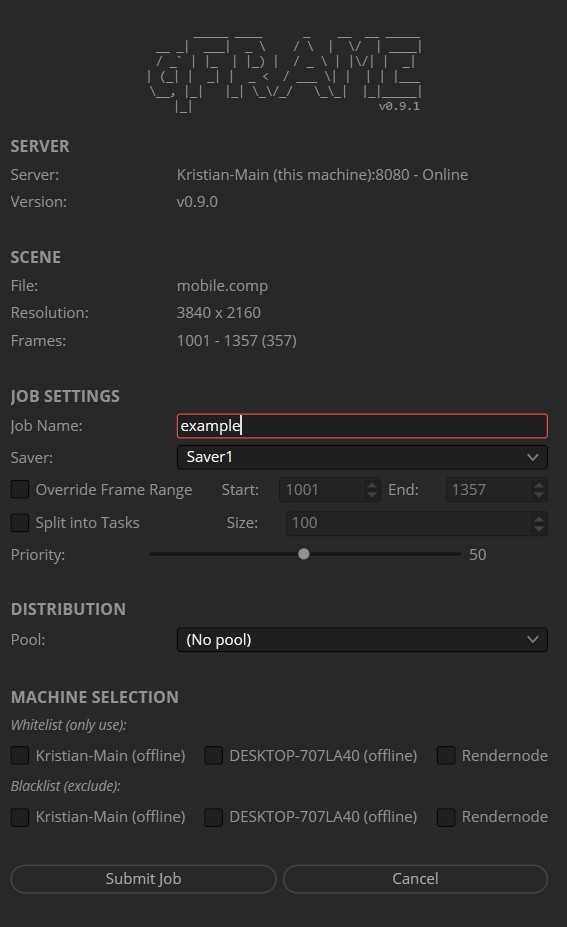
Fusion
📍 Toolbar → Script → qFrame_submitter

Submit compositions with Saver nodes directly to your farm.

Maya Coming Soon


Houdini Coming Soon


Cinema 4D Coming Soon


Nuke Coming Soon


After Effects Coming Soon


DaVinci Resolve Coming Soon


Job Actions

Most job controls are intuitive—pause, resume, restart, or delete jobs as needed. 

Tip
Use Quick Actions to automate what happens when the queue finishes: Stop Workers, Sleep Machines, or Shutdown Machines. Great for overnight renders.
Tip
Select multiple jobs using checkboxes for bulk operations—pause, resume, restart, or delete several jobs at once.

Machine Management

The Machines tab shows all connected machines with their current status:

  • Ready — Worker is running and waiting for tasks
  • Working — Currently rendering
  • Inactive — Worker is not running on this machine
  • Dead — No response (machine offline or crashed)

Machine controls include Start Worker, Stop Worker, Wake (Wake-on-LAN), Sleep, and Shutdown.

Tip
Use multi-select for bulk actions, or the Actions menu to control all machines at once.
💡
Info
The server machine is protected from batch shutdown operations to prevent accidentally killing your management system.

Auto-Update

When a new version is available, you'll see a notification in the dashboard (bell icon in the header). Click to view release notes and download.

Updating is simple: one click downloads the update to your shared folder, then all workers update automatically. If any machine misses the update, it can install manually from the updates folder.

Tip
Update notifications also appear for submitters—keep all your DCC integrations up to date from one place.

Settings

The Settings panel (gear icon) provides access to:

  • Display preferences — Refresh interval, sort order, theme
  • Software updates — qFrame and submitter updates
  • License management — Activation, seat status, subscription
  • Remote Access — Enable access from outside your network
  • Server Worker — Toggle whether the server machine also renders

License

qFrame includes a 45-day trial with full functionality and one Remote Access seat included. Just install and go.

After the trial, The header will take you to the store to purchase the amount of licenses you need. 

💡
Info
Remote Access is included in the trial but must be manually enabled in Settings if you want to access your farm from outside your network.

Remote Access

Access your farm from anywhere using app.qframe.io:

  1. Go to Settings → Remote Access
  2. Add the email adress that should be whitelisted as a remote access account. 
  3. Open app.qframe.io from any device and login to check your progress. 
💡
Info

Remote Access requires a separate Remote Access license (one seat is included in the trial period).


Troubleshooting

Workers won't connect

Check that the server is running. Verify firewall settings allow port 8080. If auto-discovery fails, try entering the server URL manually in the worker's settings. You can find the server IP by right clicking the tray icon and entering settings on the server machine. 

Jobs won't start

Make sure scene files are saved to the shared folder. Verify the required software (Blender, Maya, etc.) is installed and detected on your workers.

Frames fail

Check the render log for error messages. Common issues: missing textures (ensure they're on the shared folder or packed in the scene), out of memory, or GPU driver problems.

💡
Info
qFrame has a 72-hour offline grace period. If your server loses internet connectivity, workers continue operating normally. After 72 hours, license validation is required to continue.
{{image}}
{{image-left}}
{{image-right}}
{{gallery:2}}
{{gallery:3}}

qFrame Documentation

Overview

💜
Work in Progress
These docs will be getting some more love after a few rounds of feedback. If something is missing or unclear, let us know!

Introduction

qFrame makes distributed rendering simple and efficient. Submit jobs from your favorite DCC application, and qFrame handles the rest—distributing frames across your machines, tracking progress in real-time, and delivering finished renders without the usual headaches. Whether you have a single workstation or a full render farm, qFrame scales.


Installation

Windows / Linux / Mac

Download the installer from qframe.io. Run the setup wizard and choose your configuration:

  • Server — This machine coordinates the rendering, and if enabled, also generates previews. If this machine is suitable for being a worker this can be enabled as well.
  • Worker — For additional render nodes that connect to the existing server.

Software updates and DCC submitters are installed directly from the dashboard after setup.

Docker
💡
Info
The Docker version runs as server only — it coordinates render jobs but does not render itself. Workers must run natively on machines with GPU and DCC software installed.
docker-compose.yml
name: qframe
services:
  qframe:
    image: ghcr.io/krth8/qframe:latest
    container_name: qframe
    network_mode: host
    restart: unless-stopped
    labels:
      icon: https://cdn.jsdelivr.net/gh/krth8/qFrame@main/_build/media/logo.png
    deploy:
      resources:
        limits:
          memory: 2147483648  # 2GB - adjust based on your needs
    environment:
      - QFRAME_MODE=server
      - QFRAME_PORT=8080
      # The shared directory path inside the container
      - QFRAME_REPO=/shared
      # Path mappings: windows_path::linux_path::mac_path (see below)
      # Example: Z:/Projects::/shared::/Volumes/NAS/Projects
      - QFRAME_PATH_MAPPINGS=
    volumes:
      # Database, previews, and cache (required)
      - type: bind
        source: /path/to/appdata/qframe
        target: /app/state
      # Shared directory for scene files and updates (required)
      - type: bind
        source: /path/to/your/nas/shared
        target: /shared
      # Additional render folders for preview/gallery (optional)
      # - type: bind
      #   source: /path/to/renders
      #   target: /renders
⚠️
Required: Configure Volumes
  • /app/state — Stores database, previews, and cache. Use any persistent path on your Docker host.
  • /shared — Your network folder for scene files and software updates. Must be accessible by all workers.
  • /renders — Only needed if you want preview/gallery features and workers render to folders outside the shared directory. The server needs access to rendered files to generate thumbnails and previews.
💡
Path Mappings (Cross-Platform)

When workers run on Windows/Mac and the server runs in Docker, the same network folder has different paths. QFRAME_PATH_MAPPINGS tells the server how to translate paths for preview generation.

Format: windows_path::linux_path::mac_path

Example: Z:/Projects::/shared::/Volumes/NAS/Projects

Multiple mappings: Separate with | (pipe)

Server Setup

The server coordinates your render farm and hosts the dashboard. During setup, you'll select a shared network folder accessible by all machines. This folder stores scene files, render output, and software updates.

⚠️
Warning
The shared folder must have read/write access for all machines on your network.

That's it—the server handles discovery automatically so workers can find it without manual configuration.

Worker Setup

Workers connect to the server and render assigned frames. In most cases, auto-discovery handles everything—just start qFrame on any machine and it finds the server automatically.

Tip
If auto-discovery doesn't work (different network segments, firewalls), open the qFrame Launcher, click Settings, and enter the server URL manually (e.g., http://192.168.1.100:8080). Make sure port 8080 is open in your firewall.

Dashboard

Access the dashboard by clicking the qFrame icon in your system tray, or navigate directly to the server's IP address in any browser on the same network.

The dashboard has three main sections:

  • Jobs — View all render jobs with progress bars, thumbnails, and status.
  • Machines — Monitor connected workers with hardware stats and controls.
  • Statistics — Track render history and performance metrics.

Preview and Review

qFrame generates a thumbnail from the first completed frame so you can verify your render is working correctly. When an entire sequence finishes, qFrame can generate a preview video for quick playback (if enabled in settings).

Click any thumbnail to open the preview player:

Key Action
Space Play / Pause
← → Step frame by frame
I / O Set In / Out points for loop regions
L Toggle loop
F Focus mode (hides controls)
Scroll Zoom
Middle-drag Pan

Creating Jobs

Jobs are submitted from your DCC application using submitters. Install submitters from the dashboard under Settings. Currently available for Blender,  3ds Max, Fusion, with more coming. 

Once installed, each submitter integrates into your application's interface. Set your frame range, output settings, and click Submit. Your job appears in the dashboard.

Submitters

Blender
📍 npanel → qFrame

The Blender submitter has a lot of added features compared to the submitters for the other softwares. qFrame was initially designed as a fully blender native tool, before support for more software was added. Therefore you can use the Blender to control and monitor jobs without leaving the software. When using the blender addon, the dashboard is mostly optional. 

3ds Max
📍 Top toolbar → qFrame

Works with V-Ray, Arnold, Corona, and Scanline. Scene dependencies are automatically collected.

Fusion
📍 Toolbar → Script → qFrame_submitter

Submit compositions with Saver nodes directly to your farm.

Maya Coming Soon


Houdini Coming Soon


Cinema 4D Coming Soon


Nuke Coming Soon


After Effects Coming Soon


DaVinci Resolve Coming Soon


Job Actions

Most job controls are intuitive—pause, resume, restart, or delete jobs as needed. 

Tip
Use Quick Actions to automate what happens when the queue finishes: Stop Workers, Sleep Machines, or Shutdown Machines. Great for overnight renders.
Tip
Select multiple jobs using checkboxes for bulk operations—pause, resume, restart, or delete several jobs at once.

Machine Management

The Machines tab shows all connected machines with their current status:

  • Ready — Worker is running and waiting for tasks
  • Working — Currently rendering
  • Inactive — Worker is not running on this machine
  • Dead — No response (machine offline or crashed)

Machine controls include Start Worker, Stop Worker, Wake (Wake-on-LAN), Sleep, and Shutdown.

Tip
Use multi-select for bulk actions, or the Actions menu to control all machines at once.
💡
Info
The server machine is protected from batch shutdown operations to prevent accidentally killing your management system.

Auto-Update

When a new version is available, you'll see a notification in the dashboard (bell icon in the header). Click to view release notes and download.

Updating is simple: one click downloads the update to your shared folder, then all workers update automatically. If any machine misses the update, it can install manually from the updates folder.

Tip
Update notifications also appear for submitters—keep all your DCC integrations up to date from one place.

Settings

The Settings panel (gear icon) provides access to:

  • Display preferences — Refresh interval, sort order, theme
  • Software updates — qFrame and submitter updates
  • License management — Activation, seat status, subscription
  • Remote Access — Enable access from outside your network
  • Server Worker — Toggle whether the server machine also renders

License

qFrame includes a 45-day trial with full functionality and one Remote Access seat included. Just install and go.

After the trial, The header will take you to the store to purchase the amount of licenses you need. 

💡
Info
Remote Access is included in the trial but must be manually enabled in Settings if you want to access your farm from outside your network.

Remote Access

Access your farm from anywhere using app.qframe.io:

  1. Go to Settings → Remote Access
  2. Add the email adress that should be whitelisted as a remote access account. 
  3. Open app.qframe.io from any device and login to check your progress. 
💡
Info

Remote Access requires a separate Remote Access license (one seat is included in the trial period).


Troubleshooting

Workers won't connect

Check that the server is running. Verify firewall settings allow port 8080. If auto-discovery fails, try entering the server URL manually in the worker's settings. You can find the server IP by right clicking the tray icon and entering settings on the server machine. 

Jobs won't start

Make sure scene files are saved to the shared folder. Verify the required software (Blender, Maya, etc.) is installed and detected on your workers.

Frames fail

Check the render log for error messages. Common issues: missing textures (ensure they're on the shared folder or packed in the scene), out of memory, or GPU driver problems.

💡
Info
qFrame has a 72-hour offline grace period. If your server loses internet connectivity, workers continue operating normally. After 72 hours, license validation is required to continue.
{{image}}
{{image-left}}
{{image-right}}
{{gallery:2}}
{{gallery:3}}

qFrame Documentation

Overview

💜
Work in Progress
These docs will be getting some more love after a few rounds of feedback. If something is missing or unclear, let us know!

Introduction

qFrame makes distributed rendering simple and efficient. Submit jobs from your favorite DCC application, and qFrame handles the rest—distributing frames across your machines, tracking progress in real-time, and delivering finished renders without the usual headaches. Whether you have a single workstation or a full render farm, qFrame scales.


Installation

Windows / Linux / Mac

Download the installer from qframe.io. Run the setup wizard and choose your configuration:

  • Server — This machine coordinates the rendering, and if enabled, also generates previews. If this machine is suitable for being a worker this can be enabled as well.
  • Worker — For additional render nodes that connect to the existing server.

Software updates and DCC submitters are installed directly from the dashboard after setup.

Docker
💡
Info
The Docker version runs as server only — it coordinates render jobs but does not render itself. Workers must run natively on machines with GPU and DCC software installed.
docker-compose.yml
name: qframe
services:
  qframe:
    image: ghcr.io/krth8/qframe:latest
    container_name: qframe
    network_mode: host
    restart: unless-stopped
    labels:
      icon: https://cdn.jsdelivr.net/gh/krth8/qFrame@main/_build/media/logo.png
    deploy:
      resources:
        limits:
          memory: 2147483648  # 2GB - adjust based on your needs
    environment:
      - QFRAME_MODE=server
      - QFRAME_PORT=8080
      # The shared directory path inside the container
      - QFRAME_REPO=/shared
      # Path mappings: windows_path::linux_path::mac_path (see below)
      # Example: Z:/Projects::/shared::/Volumes/NAS/Projects
      - QFRAME_PATH_MAPPINGS=
    volumes:
      # Database, previews, and cache (required)
      - type: bind
        source: /path/to/appdata/qframe
        target: /app/state
      # Shared directory for scene files and updates (required)
      - type: bind
        source: /path/to/your/nas/shared
        target: /shared
      # Additional render folders for preview/gallery (optional)
      # - type: bind
      #   source: /path/to/renders
      #   target: /renders
⚠️
Required: Configure Volumes
  • /app/state — Stores database, previews, and cache. Use any persistent path on your Docker host.
  • /shared — Your network folder for scene files and software updates. Must be accessible by all workers.
  • /renders — Only needed if you want preview/gallery features and workers render to folders outside the shared directory. The server needs access to rendered files to generate thumbnails and previews.
💡
Path Mappings (Cross-Platform)

When workers run on Windows/Mac and the server runs in Docker, the same network folder has different paths. QFRAME_PATH_MAPPINGS tells the server how to translate paths for preview generation.

Format: windows_path::linux_path::mac_path

Example: Z:/Projects::/shared::/Volumes/NAS/Projects

Multiple mappings: Separate with | (pipe)

Server Setup

The server coordinates your render farm and hosts the dashboard. During setup, you'll select a shared network folder accessible by all machines. This folder stores scene files, render output, and software updates.

⚠️
Warning
The shared folder must have read/write access for all machines on your network.

That's it—the server handles discovery automatically so workers can find it without manual configuration.

Worker Setup

Workers connect to the server and render assigned frames. In most cases, auto-discovery handles everything—just start qFrame on any machine and it finds the server automatically.

Tip
If auto-discovery doesn't work (different network segments, firewalls), open the qFrame Launcher, click Settings, and enter the server URL manually (e.g., http://192.168.1.100:8080). Make sure port 8080 is open in your firewall.

Dashboard

Access the dashboard by clicking the qFrame icon in your system tray, or navigate directly to the server's IP address in any browser on the same network.

The dashboard has three main sections:

  • Jobs — View all render jobs with progress bars, thumbnails, and status.
  • Machines — Monitor connected workers with hardware stats and controls.
  • Statistics — Track render history and performance metrics.

Preview and Review

qFrame generates a thumbnail from the first completed frame so you can verify your render is working correctly. When an entire sequence finishes, qFrame can generate a preview video for quick playback (if enabled in settings).

Click any thumbnail to open the preview player:

Key Action
Space Play / Pause
← → Step frame by frame
I / O Set In / Out points for loop regions
L Toggle loop
F Focus mode (hides controls)
Scroll Zoom
Middle-drag Pan

Creating Jobs

Jobs are submitted from your DCC application using submitters. Install submitters from the dashboard under Settings. Currently available for Blender,  3ds Max, Fusion, with more coming. 

Once installed, each submitter integrates into your application's interface. Set your frame range, output settings, and click Submit. Your job appears in the dashboard.

Submitters

Blender
📍 npanel → qFrame

The Blender submitter has a lot of added features compared to the submitters for the other softwares. qFrame was initially designed as a fully blender native tool, before support for more software was added. Therefore you can use the Blender to control and monitor jobs without leaving the software. When using the blender addon, the dashboard is mostly optional. 

3ds Max
📍 Top toolbar → qFrame

Works with V-Ray, Arnold, Corona, and Scanline. Scene dependencies are automatically collected.

Fusion
📍 Toolbar → Script → qFrame_submitter

Submit compositions with Saver nodes directly to your farm.

Maya Coming Soon


Houdini Coming Soon


Cinema 4D Coming Soon


Nuke Coming Soon


After Effects Coming Soon


DaVinci Resolve Coming Soon


Job Actions

Most job controls are intuitive—pause, resume, restart, or delete jobs as needed. 

Tip
Use Quick Actions to automate what happens when the queue finishes: Stop Workers, Sleep Machines, or Shutdown Machines. Great for overnight renders.
Tip
Select multiple jobs using checkboxes for bulk operations—pause, resume, restart, or delete several jobs at once.

Machine Management

The Machines tab shows all connected machines with their current status:

  • Ready — Worker is running and waiting for tasks
  • Working — Currently rendering
  • Inactive — Worker is not running on this machine
  • Dead — No response (machine offline or crashed)

Machine controls include Start Worker, Stop Worker, Wake (Wake-on-LAN), Sleep, and Shutdown.

Tip
Use multi-select for bulk actions, or the Actions menu to control all machines at once.
💡
Info
The server machine is protected from batch shutdown operations to prevent accidentally killing your management system.

Auto-Update

When a new version is available, you'll see a notification in the dashboard (bell icon in the header). Click to view release notes and download.

Updating is simple: one click downloads the update to your shared folder, then all workers update automatically. If any machine misses the update, it can install manually from the updates folder.

Tip
Update notifications also appear for submitters—keep all your DCC integrations up to date from one place.

Settings

The Settings panel (gear icon) provides access to:

  • Display preferences — Refresh interval, sort order, theme
  • Software updates — qFrame and submitter updates
  • License management — Activation, seat status, subscription
  • Remote Access — Enable access from outside your network
  • Server Worker — Toggle whether the server machine also renders

License

qFrame includes a 45-day trial with full functionality and one Remote Access seat included. Just install and go.

After the trial, The header will take you to the store to purchase the amount of licenses you need. 

💡
Info
Remote Access is included in the trial but must be manually enabled in Settings if you want to access your farm from outside your network.

Remote Access

Access your farm from anywhere using app.qframe.io:

  1. Go to Settings → Remote Access
  2. Add the email adress that should be whitelisted as a remote access account. 
  3. Open app.qframe.io from any device and login to check your progress. 
💡
Info

Remote Access requires a separate Remote Access license (one seat is included in the trial period).


Troubleshooting

Workers won't connect

Check that the server is running. Verify firewall settings allow port 8080. If auto-discovery fails, try entering the server URL manually in the worker's settings. You can find the server IP by right clicking the tray icon and entering settings on the server machine. 

Jobs won't start

Make sure scene files are saved to the shared folder. Verify the required software (Blender, Maya, etc.) is installed and detected on your workers.

Frames fail

Check the render log for error messages. Common issues: missing textures (ensure they're on the shared folder or packed in the scene), out of memory, or GPU driver problems.

💡
Info
qFrame has a 72-hour offline grace period. If your server loses internet connectivity, workers continue operating normally. After 72 hours, license validation is required to continue.
{{image}}
{{image-left}}
{{image-right}}
{{gallery:2}}
{{gallery:3}}

Render farm management, simplified.

© 2026 qFrame. All rights reserved.

Render farm management, simplified.

© 2026 qFrame. All rights reserved.

Render farm management, simplified.

© 2026 qFrame. All rights reserved.